A USB webcam is not a general-purpose surveillance camera. It usually lacks PoE, weather protection, long cable runs, varifocal optics, and the low-light behavior expected from dedicated security hardware.
That is why webcam-to-VMS is usually not a substitute for adding normal scene coverage. It is more often a transport problem: the Windows PC already has a built-in or USB webcam, and that existing feed must be recorded in the same VMS or NVR workflow as the rest of the site.
That comes up in places such as exam stations, service counters, kiosks, interview desks, ATMs with attached PCs, manufacturing benches, or temporary work areas where the webcam is already part of the endpoint. The challenge is getting that video into the VMS cleanly.
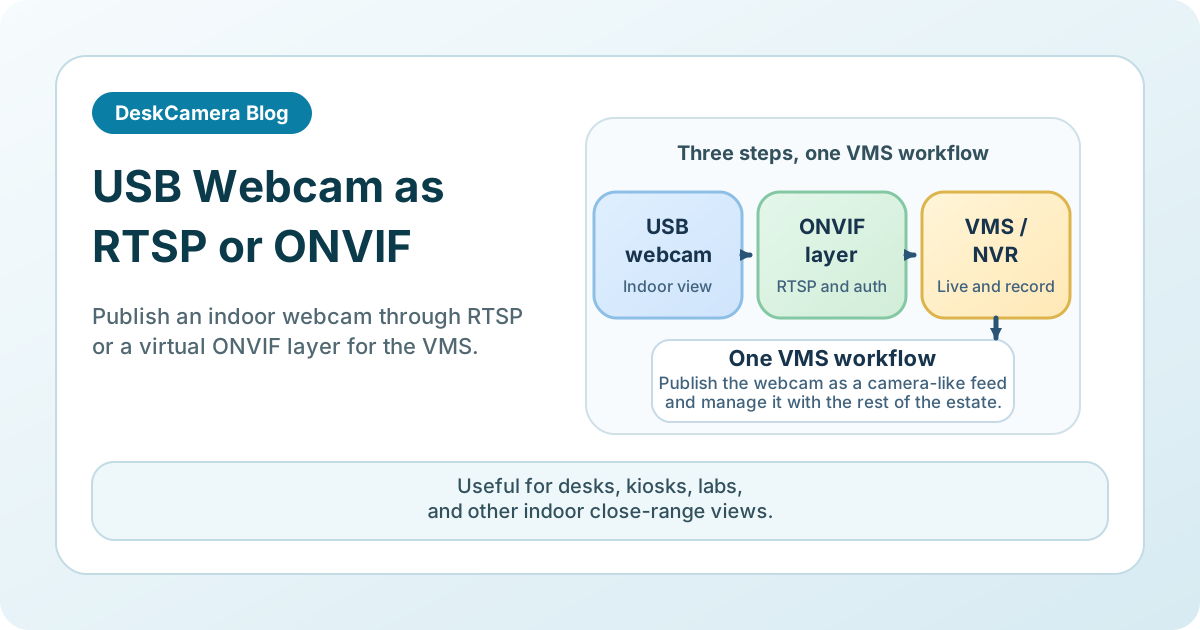
DeskCamera addresses that by exposing webcam video through RTSP and a virtual ONVIF camera layer, so the feed can be treated more like a standard surveillance endpoint.
When a Webcam-to-VMS Setup Makes Sense
This approach is strongest in indoor, close-range, workstation-adjacent use cases:
- Service desks and reception points
- Temporary work areas or pilot deployments
- Kiosks and self-service stations
- Labs, classrooms, and training environments
- Interview or support desks where a webcam already exists on the endpoint
In these cases, the webcam is often “good enough” visually, and the real requirement is centralized recording and review.
RTSP Alone vs ONVIF Integration
There are three common handoff patterns, and the more useful question is what the VMS expects and whether the webcam needs to travel alone or alongside other Windows media.
Webcam only
If the target platform only needs a network stream, RTSP can be enough.
Webcam with camera-style device handling
If the target VMS expects discovery, authentication, and more normal device management, a virtual ONVIF camera layer is usually the cleaner fit.
Webcam with desktop, audio, or picture-in-picture
Some desk, kiosk, and interview workflows are not really webcam-only. Workflows may need the face view plus the application window, the webcam plus synchronized audio, or a picture-in-picture layout that keeps operator and screen context on one timeline. In those cases, it helps to use a workflow that can publish multiple Windows media sources together.
If you want the background on how that model works, read Can a PC Act as an ONVIF IP Camera? .
If your source is not a local webcam but an existing network feed that needs cleaner VMS behavior, see How to Convert RTSP or MJPEG Streams to ONVIF .
Practical Limitations of Webcams in Security Work
Using a webcam can be practical when the endpoint already has one, but it is not the right answer for every surveillance requirement.
Optics and placement
Webcams are designed for short distances and face-level placement, not wide-area coverage or difficult mounting positions.
Low-light performance
Many webcams perform poorly compared with purpose-built surveillance cameras in dim scenes or high-contrast lighting.
Physical resilience
A webcam is usually not the right choice for outdoor, vandal-prone, or industrial environments.
Power and cabling
USB distance and host dependency can become design constraints quickly.
That means webcam-to-VMS is best treated as a targeted workflow for existing endpoints, not as a general replacement for properly placed IP cameras.
Operational Considerations Before a Rollout
Host and device behavior
The webcam depends on the Windows endpoint that powers it. Validate reboot behavior, logon state, built-in camera permissions, USB device persistence, and what happens after a monitor power cycle, webcam reconnect, or workstation reassignment.
Image quality for the real task
Test the actual review job, not just whether video appears in the VMS. A webcam that looks acceptable for a call may still be too soft for transaction review, interview evidence, or close-up object handling.
Audio and privacy scope
If the webcam workflow also needs audio, define that early and confirm the permissions, notice, and retention rules around the combined feed.
Coverage limits
If the requirement expands from a desk, kiosk, or service point to wide-area coverage, low light, or unattended 24/7 surveillance, a purpose-built IP camera is usually the better fit.
Typical Webcam-to-VMS Scenarios
The common question on this page is not how to replace a normal room camera. It is how to get the webcam already attached to a Windows endpoint into the surveillance workflow without adding a separate recorder beside it.
Typical examples include:
- An exam or training station where the PC’s built-in webcam needs to be recorded in the same VMS used for the rest of the room.
- An ATM, kiosk, or self-service terminal where the endpoint already has a webcam and the security team wants centralized retention instead of a one-off local recording workflow.
- A manufacturing or inspection workstation where a USB webcam is already aimed at a close-range process, bench, or operator interaction and that feed needs to land in the NVR.
- An interview, support, or reception desk where the webcam view needs to be reviewable in the same platform operators already use for camera footage.
- A temporary or mobile workstation where installing a dedicated IP camera would add hardware, power, cabling, and another device to manage for a short-lived need.
DeskCamera is used across Milestone, Hikvision, Dahua, Nx Witness, Genetec, and smaller VMS stacks. The webcam-specific checks still matter at pilot time: optics, lighting, reconnect behavior, and how the Windows host behaves after reboot or sign-out.
Practical Multi-Source Workflows
In most environments, the webcam is one of several media sources on the same Windows host, and the setup combines the face view with a screen capture, audio feed, or picture-in-picture layout.
DeskCamera supports these multi-source layouts directly — separate RTSP streams per source, ONVIF grouping for VMS-side management, and synchronized recording. Environments already using DeskCamera for screen-to-VMS recording across retail, control room, and industrial operations follow the same model when a webcam feed also needs to reach the VMS.
In environments where the desk, kiosk, or service point already has a USB webcam attached, the typical pilot starts with one representative endpoint and the target VMS. That test usually answers the questions that matter most: whether the image is readable enough for the actual review task, how the webcam and host behave after a reboot or reconnect, and whether the VMS handles discovery and recording cleanly.
To see how DeskCamera is used across different environments, visit the DeskCamera customer examples .
Where DeskCamera Fits
DeskCamera is most useful when there is already a Windows endpoint with a built-in or USB webcam and the goal is to make that feed behave like part of the VMS or NVR estate rather than a separate local recorder.
This usually means one or more of the following:
- The webcam needs RTSP or ONVIF-style handoff into the target system.
- Operators want the webcam recorded and reviewed in the same surveillance platform they already use.
- The site wants to avoid adding another hardware encoder, converter, or standalone recorder just for that endpoint.
- The workflow may also need audio, picture-in-picture, or another Windows media source from the same host.
If your actual requirement is screen evidence rather than just camera video, see How to Record a Computer Screen to a VMS . If the webcam is part of a retail POS or service-desk environment, see POS screen recording for retail VMS deployments . If the setting is a simulation suite or clinical workstation, see simulation lab and clinical workstation recording for VMS .
Next Step
If this looks close to your environment, the next step is usually a small pilot with one representative webcam and the target VMS or NVR. That kind of test usually answers the practical questions that matter most: image readability for the real task, USB or built-in camera reconnect behavior, logon and reboot behavior on the Windows host, and discovery or recording behavior in the VMS.
For the product details, review the DeskCamera feature set . If the workflow is right for your environment, start a free trial .
If the deployment touches sensitive or regulated data, also review the DeskCamera compliance statement before rollout.