Retail investigations often rely on two incomplete sources: transaction logs and overhead cameras. Logs show what the POS application recorded. Cameras show the operator and the lane. Neither one reliably shows the exact on-screen workflow that led to the event.
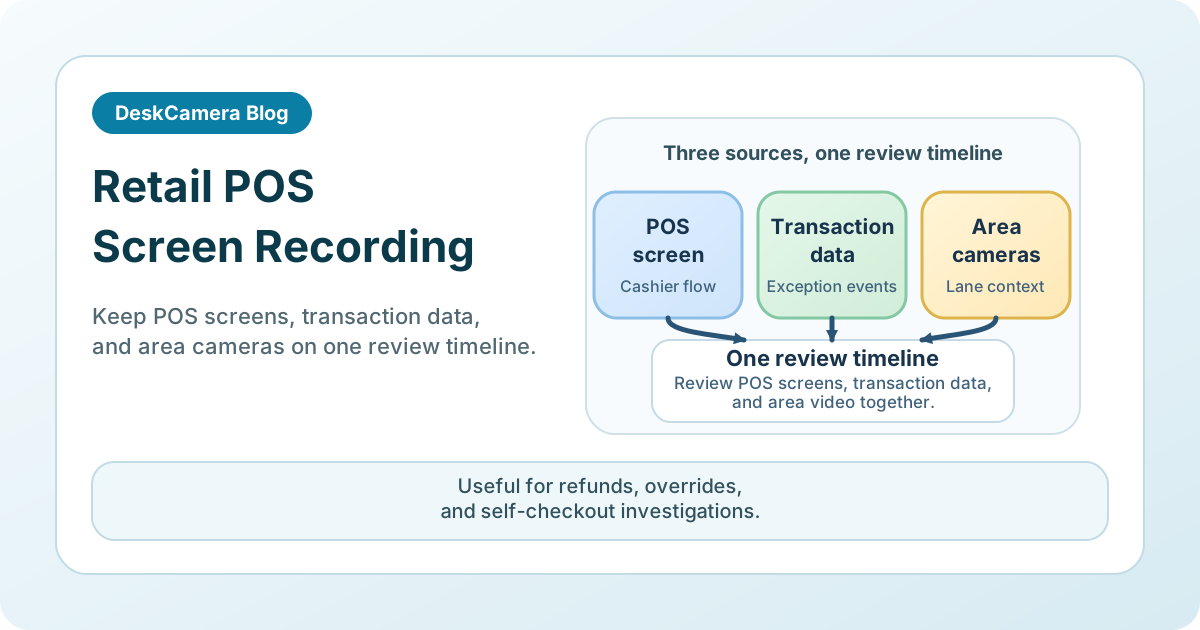
POS screen recording closes that gap. It adds the missing layer between transaction data and physical video, which is often where voids, price overrides, training issues, or self-checkout exceptions actually become understandable.
DeskCamera is built for this kind of workflow by exposing a Windows-based POS terminal as a VMS-ready source instead of forcing a separate recording system beside the surveillance stack.
What POS Screen Recording Solves
A text inserter or POS exception feed is still useful, but it does not answer every question. For example:
- Which screen was open when the refund was processed?
- Was the cashier following the expected sequence or navigating around it?
- Did the self-checkout user trigger prompts that are not visible on the overhead camera?
- Was the operator dealing with a training issue, a customer error, or a suspicious pattern?
Screen video is especially useful when the UI itself contains the evidence.
Where It Fits in Retail Operations
Teams usually start with a few familiar retail workflows.
Cashier lanes
Match the POS interface to ceiling-camera footage and transaction events for post-incident review.
Self-checkout
Review barcode prompts, skipped-item flows, assistance requests, and exception handling in the same timeline as area cameras.
Service desks
Capture refund, exchange, loyalty, and manual override workflows that are difficult to reconstruct from logs alone.
Warehouse and fulfillment
Packing, picking, and dispatch screens can matter just as much as the front-of-house till when the question is which item was actually processed or which workflow step was visible on screen.
Store-office refund and audit terminals
Where investigations depend on refund approvals, inventory adjustments, or end-of-day exception review, recording the office terminal can show the approval and exception-review steps that the lane camera and transaction log do not show clearly.
Real Retail Deployments
- Ramon Marrero, IT Manager at MiGente2go La Sierra uses DeskCamera on supermarket cashier systems to find checkout errors, review operator actions, and build training material.
- Nick Sutton, Operations Manager at Pravera Limited records RF SMART packing screens because overhead cameras could not show which small items were actually packed. Keeping the packing screen aligned with CCTV helped the team reverse missing-product claims.
- Kevin Willis, Head of Compliance at Victoria Gate Casino started with one POS till and expanded to a wider rollout within a week, with no downtime and lower loss incidents while recording multiple tills to a local NVR.
The common pattern across all three: when the dispute depends on the exact screen state, logs and ceiling cameras are not enough. The same model also fits smaller store estates where teams need cashier lanes, service desks, packing stations, or store-office refund review on the same timeline as area cameras.
If you need the broader architecture first, see How to Record a Computer Screen to a VMS .
Operational Considerations Before a Rollout
Retail deployments look simple on paper, but a few operational details matter.
Readability
POS interfaces often use small fonts and dense layouts. Test actual recordings to make sure item lines, totals, and prompts remain legible.
Privacy and payment handling
A retail team should define exactly which screens may be recorded and how access is controlled. Screen recording can capture more data than a standard CCTV camera.
Endpoint performance
The POS terminal is still a production workstation. Encoding overhead should be tested on the actual hardware profile, not on a newer office PC.
Legacy POS estates
Many retail deployments still run on long-lived tills and older workstation builds. Before expanding POS screen recording, verify OS support, available hardware-assisted encoding, and whether the lane can keep producing a readable stream on the real store hardware.
Shift changes and restart behavior
If the POS screen is part of the evidence trail, test reboot, cashier logoff, session lock, and shift handoff during the pilot. Those are the moments that decide whether the channel behaves like an operational camera source or a fragile desktop tool.
Remote deployment
Multi-store environments only scale if the software can be deployed, updated, and monitored centrally across many lanes and stores.
Why It Fits Retail Security Operations
DeskCamera fits best when retail teams want POS screens inside the existing VMS or NVR workflow instead of in a separate recorder, hardware encoder, or camera-pointed-at-monitor workaround.
For the broader product view, see the DeskCamera feature overview . If you need the endpoint model behind a POS terminal behaving like a camera, read Can a PC Act as an ONVIF IP Camera? .
If your POS use case extends into hospitality, gaming, or mixed bar and restaurant operations, see casino surveillance and POS screen recording .
Pilot the Retail Workflow
A sensible pilot starts with one cashier lane, one self-checkout station, or one packing desk that already generates regular reviews. That lets the team validate text readability, VMS playback behavior, access controls, and restart behavior before expanding store-wide. To see how DeskCamera fits this kind of deployment, review the DeskCamera retail page and the feature overview . If you already know which lane or station you want to test, start a free trial .