People searching for ONVIF software on Windows are often looking for different tools without realizing it. One team needs a viewer to test discovery and live video. Another needs recording software for an NVR-style workflow. A third needs a Windows PC, application screen, webcam, or other local media source to appear inside a VMS as an ONVIF-compatible camera.
Those are not the same job. A viewer can help validate a device, but it will not turn a workstation into a camera. A recorder can store streams, but it may not solve discovery or device-emulation requirements. Virtual camera software solves a different problem again: it publishes Windows-based media as a camera-like endpoint that a VMS can ingest and manage.
That is why the phrase “ONVIF software for Windows” causes confusion. The useful question is not only whether the tool supports ONVIF. It is what role the software plays in the workflow: viewing, recording, or acting as the device side of the connection.
Why the Term “ONVIF Software” Is Ambiguous
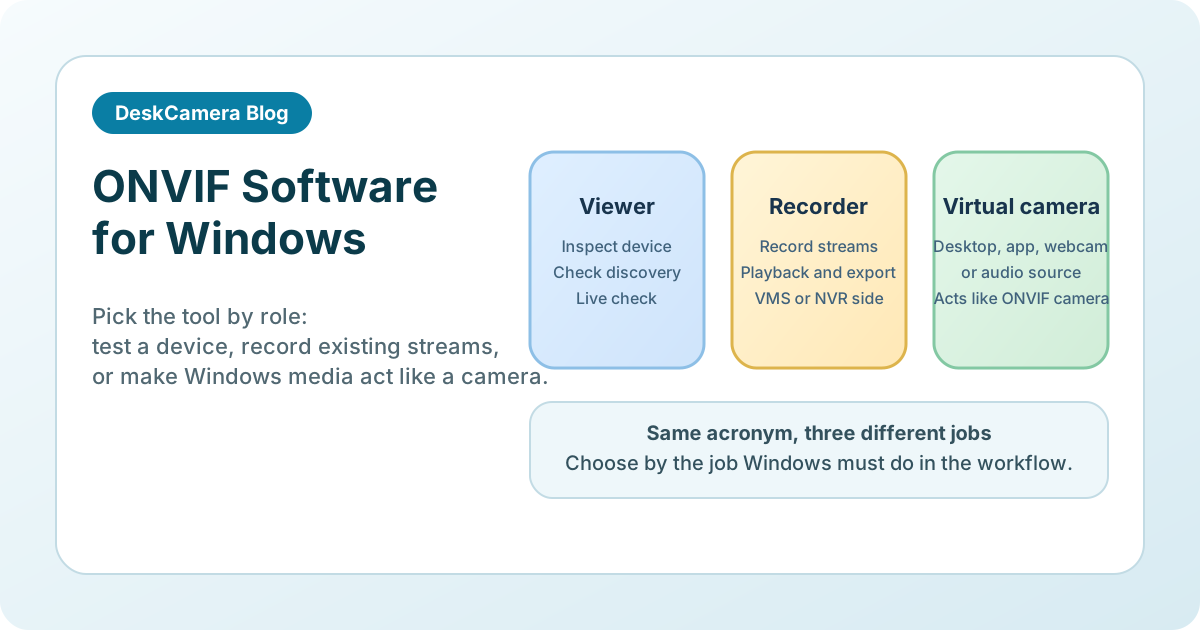
In practice, the phrase usually covers three different categories:
| If you need to… | Typical tool | Best fit | Usually not enough when… |
|---|---|---|---|
| Check discovery, credentials, profiles, or live video | ONVIF viewer | Camera testing, pilot validation, device inspection | You need a Windows source to appear as a camera |
| Record streams from existing devices | Recording software or VMS/NVR software | Central retention and playback of existing cameras | You need the Windows host itself to publish a camera-like endpoint |
| Publish desktop, app, webcam, audio, or a local stream as an ONVIF endpoint | Virtual ONVIF camera software | Workstation-to-VMS and software-defined camera workflows | You only need simple device inspection |
If your source is already an external HTTP MJPEG or RTSP feed and the missing piece is ONVIF behavior, that is a protocol-bridge question rather than a viewer question. For that workflow, read How to Convert RTSP or MJPEG Streams to ONVIF .
When an ONVIF Viewer Is Enough
A Windows ONVIF viewer is usually the right first tool when the main task is validation rather than deployment. Common examples include:
- Checking whether a camera advertises ONVIF services correctly
- Verifying credentials, stream profiles, and basic live view
- Confirming that a device can be discovered before adding it to the production VMS
- Comparing behavior across firmware versions or camera models
ONVIF Device Manager is the tool many Windows users still reach for first in this category, and for pure inspection it is usually enough. Teams looking for an ONVIF Device Manager alternative are often really asking for something newer, more actively maintained, or capable of the publishing role described later in this article.
That is useful technical work, but it is still a test-client workflow. It does not make the Windows machine itself publish an ONVIF endpoint. If your actual problem is “how do I make this Windows source behave like a camera?” a viewer is the wrong category.
When ONVIF NVR or Recording Software Is the Right Tool
ONVIF NVR or recording software makes sense when the sources already exist as cameras or ONVIF-capable devices and the main requirement is retention, playback, or simple NVR behavior.
This is the right class of software when you already have network cameras, encoders, or ONVIF endpoints and want Windows to act as the recording side of the system. In that situation, the value comes from storage policy, playback, export, and operator workflow rather than device emulation.
If the source is already in the VMS and you only need a better recording architecture, a virtual camera product is unnecessary. The question is no longer how to publish the source. It is how to retain and review it well.
When a Virtual Camera Is the Right Tool
This is the class of ONVIF camera software that matters when the source starts on Windows rather than on an existing camera. Virtual ONVIF camera software covers cases where the publishing side, not the recording side, is the missing piece. That source might be:
- A full desktop or selected monitor
- One application window such as a POS client, SCADA screen, or dispatch tool
- A built-in or USB webcam
- Audio from the same Windows endpoint
- An external RTSP or HTTP MJPEG feed that still needs cleaner ONVIF handoff
That is the gap DeskCamera is built for. It adds an ONVIF-capable publishing layer so the Windows host can appear in a VMS more like a normal camera source. From the VMS point of view, it emulates a camera endpoint, but unlike a pure ONVIF simulator the source is real Windows media rather than a synthetic test pattern.
If you need the deeper architecture behind that model, read Can a PC Act as an ONVIF IP Camera? . If the use case is specifically screen evidence inside the surveillance workflow, read How to Record a Computer Screen to a VMS .
RTSP-Only Tools vs ONVIF Publishing
RTSP and ONVIF solve different problems. RTSP moves media. ONVIF makes the endpoint behave more like a camera inside the surveillance platform.
That distinction matters most on Windows. If the target system accepts a manual RTSP stream and does not care about discovery, device-style authentication, or predictable camera handling, RTSP-only publishing can be enough. If the target VMS expects ONVIF behavior, RTSP alone often leaves operators with a fragile workaround.
This is also why generic streaming tools and generic screen recorders often disappoint security teams. They may generate video successfully while still failing the operational requirement that matters most: fitting into the same add, record, review, and export workflow already used for cameras.
Common Windows Workflows That Need More Than a Viewer
The strongest fit for a virtual camera workflow is when the evidence or context lives on the Windows endpoint itself.
Control rooms and command centers
Teams often need the operator screen, not just the room camera. If that is your problem, see City Surveillance Command Center Screen Recording in a VMS .
Retail and service-desk workflows
A POS till, refund desk, or self-checkout screen may carry the evidence that logs and ceiling cameras miss. For that workflow, see POS Screen Recording for Retail VMS Deployments .
SCADA and HMI workstations
Industrial investigations often depend on what the HMI or alarm screen showed at the time, not just what the area camera saw. See SCADA and HMI Screen Recording for VMS and NVR .
Webcam plus screen or audio
Some Windows endpoints need a webcam feed in the VMS, sometimes alongside desktop or audio capture. For that model, see Webcam Security Camera Software for VMS and NVR Systems .
What to Validate Before Choosing a Tool
Even when the category is right, the pilot should answer the operational questions that determine whether the workflow survives production.
- Does the target VMS only need a test client, or does it expect a device that behaves like a camera?
- Will operators add the source manually by RTSP, or do they need ONVIF discovery and more normal device handling?
- Is the source already a camera, or is it a Windows screen, application, webcam, or mixed-media workflow?
- What happens after reboot, reconnect, sign-out, password changes, or network interruption?
- Does the recording policy match the investigation need, especially if the source is a dense desktop or transaction screen?
- Does the workflow touch sensitive data that should be reviewed against the DeskCamera compliance statement ?
If those checks point to a viewer or recorder, use that category. If they point to a Windows endpoint that must publish itself into the VMS, that is where a virtual camera product becomes relevant.
Where DeskCamera Fits
DeskCamera is not a generic ONVIF viewer and it is not a full VMS. It is most useful when the missing piece is on the source side:
- A Windows host needs to publish a desktop, app, webcam, audio source, or external stream into a VMS
- The environment benefits from ONVIF-style device behavior rather than a bare RTSP handoff
- The team wants to avoid hardware encoders or one-off gateway appliances at each endpoint
- The workflow needs to land inside existing systems such as Milestone, Genetec, Nx Witness, or other VMS/NVR platforms
If the Windows source itself needs to become a manageable VMS input, DeskCamera offers a free trial so the publishing workflow can be validated end to end before any purchase. Review the DeskCamera feature set and the DeskCamera download .
Related Reading
- Can a PC Act as an ONVIF IP Camera?
- How to Record a Computer Screen to a VMS
- How to Convert RTSP or MJPEG Streams to ONVIF
- Webcam Security Camera Software for VMS and NVR Systems
Next Step
If your requirement is still unclear, start by naming the source and the destination separately: what is the Windows source, and how does the target VMS expect to receive it?
That usually makes the category choice obvious. When the answer is “existing camera, test only,” use a viewer. When it is “existing camera, retain and review,” use recording software. When it is “Windows media source that must behave like part of the camera estate,” start with the DeskCamera feature set , run a small pilot with the target VMS, and if the workflow fits, start a free trial .