Airports depend on software-driven operations as much as camera coverage. A terminal camera can show a queue forming or a baggage area stopping, but it cannot show what the dispatcher saw on the workstation, which alarm was active, or what the public display showed at that exact moment.
That is why airport investigations often need screen evidence, not only room video. The useful record may include a baggage control screen, a flight information display workflow, an operations dashboard, or a supervisor console that was visible only during a short decision window.
DeskCamera is relevant here because it can expose selected airport workstations to the VMS through ONVIF and RTSP-oriented workflows instead of forcing the team to review a separate desktop-recording archive.
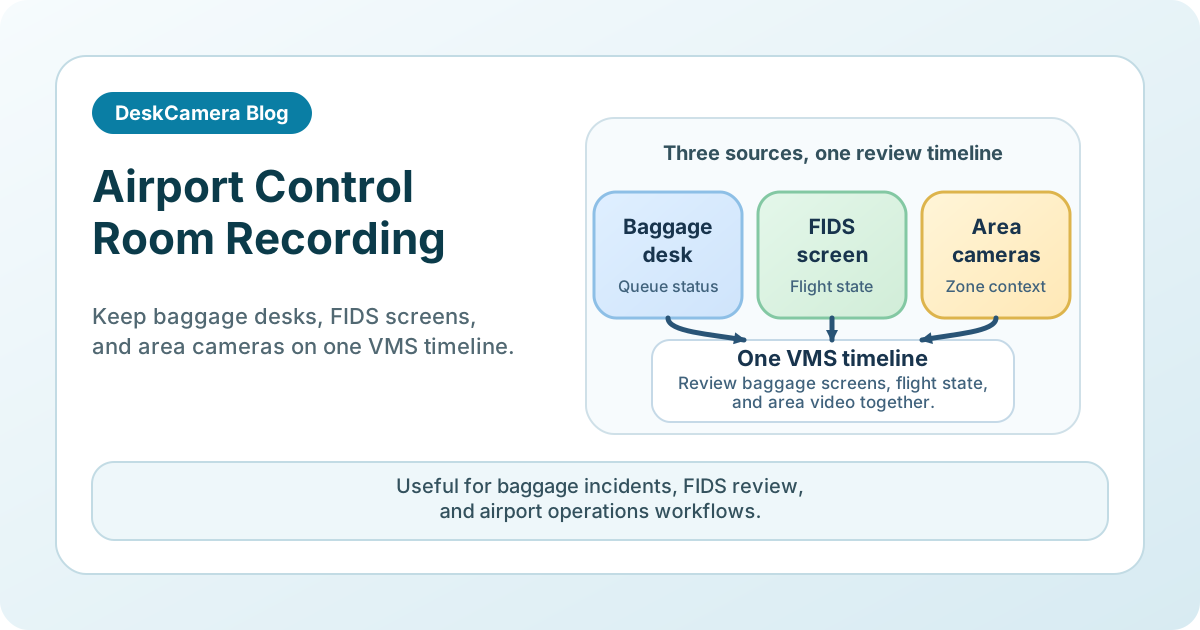
Where Airport Screen Recording Adds Value
Airport teams usually need this when they are trying to solve one of three problems:
- record an airport control-room screen inside an existing VMS
- preserve baggage-system or operations-workstation context during incident review
- keep flight, dispatch, or operational displays on the same timeline as cameras
That is narrower than generic screen capture. The goal is to keep baggage, FIDS, and control-room screen evidence inside the surveillance workflow already used for incident review.
Workflow 1: Baggage and Operations Desk Review
A common airport use case starts at a baggage or operations workstation.
A bag goes missing, a handoff stalls, or a subsystem reports a fault. Cameras can show conveyors, work areas, and staff movement, but the investigation also needs the application state: queue status, exception messages, routing information, or the screen the operator used when the problem was escalated.
A practical deployment records one selected workstation and aligns it with the area cameras already in the VMS. During review, the investigator can see both sides of the event:
- the physical condition on camera
- the status shown on the workstation
- the timing between alarm, acknowledgement, and action
That usually gives more value than exporting a separate desktop recording after the fact, because supervisors can review the screen and camera evidence together.
Workflow 2: Control Room and FIDS Context
Another strong use case is the airport control room itself.
When a gate change, disruption, access issue, or operational escalation is reviewed, teams often need to know what the operator or supervisor had on screen. That may include a live dashboard, FIDS management console, map, incident system, or airport-specific operational tool.
The question is rarely only “what happened in the terminal?” It is often also:
- what was visible on the operator screen when the decision was made
- whether the correct display or dashboard was open
- whether the public-facing information matched the internal workflow
That makes screen recording useful for post-incident reconstruction, quality review, and handoff analysis.
If your focus is the general command-center model rather than airport operations specifically, see command center screen recording for city operations . For the broader workstation-to-VMS model, see How to Record a Computer Screen to a VMS .
Operational Considerations Before a Rollout
Airport environments are not generic office deployments. The workstation may be vendor-managed, operationally sensitive, or tied to tightly controlled support windows. The points below are common planning considerations rather than a fixed checklist.
Change control on live systems
One question is how closely the pilot matches the actual workstation image, hardware profile, and support process used in production. A result from a normal office PC may say little about a live airport endpoint.
Legibility of dense operational screens
Baggage and operations interfaces may contain small text, color-coded statuses, and dense tables. The main consideration is whether playback remains useful for real review tasks, not just whether video is technically being recorded.
Monitor scope in control rooms
Some airport desks use one key display, while supervisor and control-room positions may use two or more monitors. One planning decision is which screens actually matter enough to record before sizing retention, endpoint load, and review expectations.
Physical-hardware replacement path
If the current setup depends on splitters, encoders, or dedicated capture hardware for FIDS or operations displays, it helps to map how each screen would be virtualized, named, and reviewed inside the target VMS before the old chain is removed.
Retention by role, not by habit
A dispatcher screen, a baggage desk, and a public display workstation may not justify the same retention policy. Retention may need to be scoped role by role rather than copied from a single default.
Access control and scope
Recorded operator screens can expose internal tools and operating procedures. Access scope and reviewer roles usually need to be defined before scaling beyond a pilot.
Real Airport and Control-Room Evidence
One airport operations team evaluated DeskCamera to replace a physical hardware setup capturing input from eight FIDS machines into a Genetec CCTV environment. The goal was to virtualize the entire capture chain — eliminating splitters, encoders, and dedicated hardware — so the FIDS screens could appear inside Genetec as standard ONVIF camera sources. That is exactly the hardware-replacement path described in the operational considerations above.
The underlying model — selected operator screens recorded into a VMS alongside physical cameras — is already in production at other multi-monitor control-room sites. Vivek Kumar, Country Director at Veracity India , records dual-monitor security control-room workstations across cities into standard NVRs over ONVIF with minimal CPU impact per workstation. That is a security control room rather than an airport operations center, but the workflow overlap is direct: multi-monitor workstations, ONVIF transport, VMS-side review, and low host impact.
For airport teams, the practical test is whether the same model gives them what they need on the desks that matter most:
- one review workflow for screen and camera evidence
- one retention environment instead of a separate desktop-recording archive
- readable playback of dense operational interfaces on the actual review stations used during investigations
If you are evaluating the endpoint model behind that workflow, read Can a PC Act as an ONVIF IP Camera? .
Start with One Operationally Important Screen
A good airport pilot is narrow. Start with one baggage exception desk, one supervisor console, or one workstation that already matters during investigations. That kind of pilot makes it easier to see how host impact, legibility, review permissions, and retention look on a real workflow before adding more operational endpoints.
If that matches your environment, review the DeskCamera aviation surveillance page . Then choose one baggage desk, FIDS screen, or supervisor console, start a free trial , and validate the workflow on one real operational endpoint before expanding.